Moisture Detected in USB Port: How to Fix on Samsung and Android
 By Lucas Silva
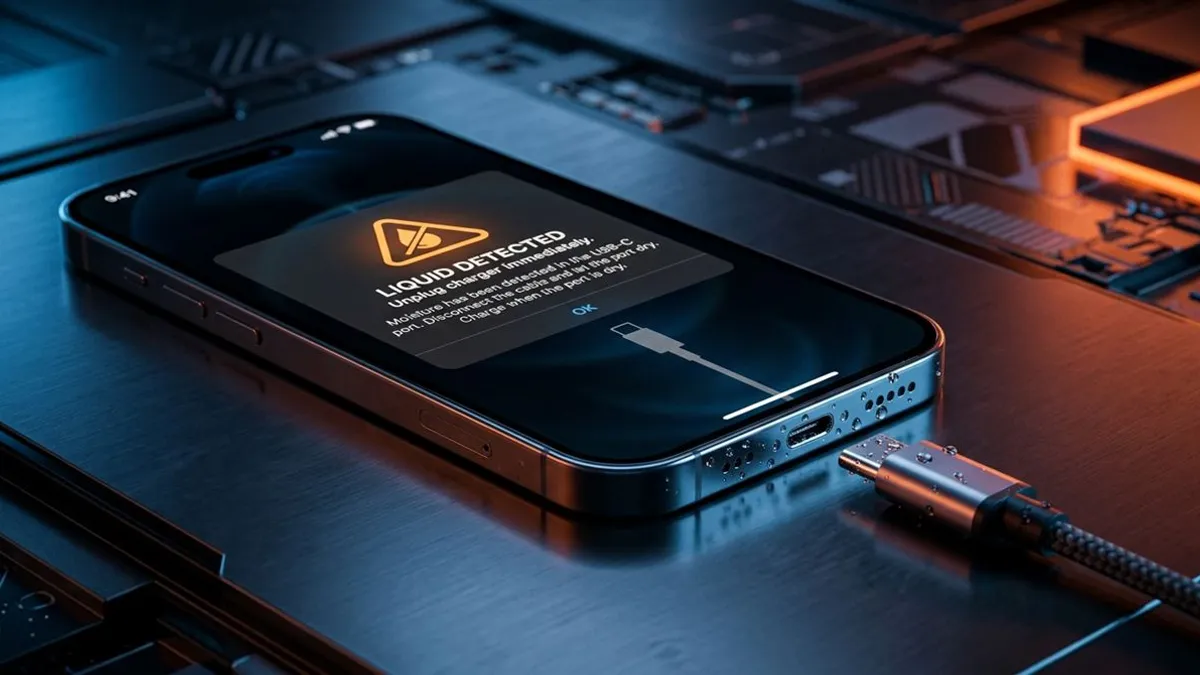
⚡ Bench Diagnostic Summary:
The water droplet icon and "Moisture detected in your charger/USB port" warning on Samsung Galaxy and Android devices is a hardware defense mechanism designed to prevent short circuits. If the warning persists after physical drying, it is usually a cached system flag or conductive salt residue that requires systematic bench triage.
What Triggers the Moisture Detected Alert on Android Phones
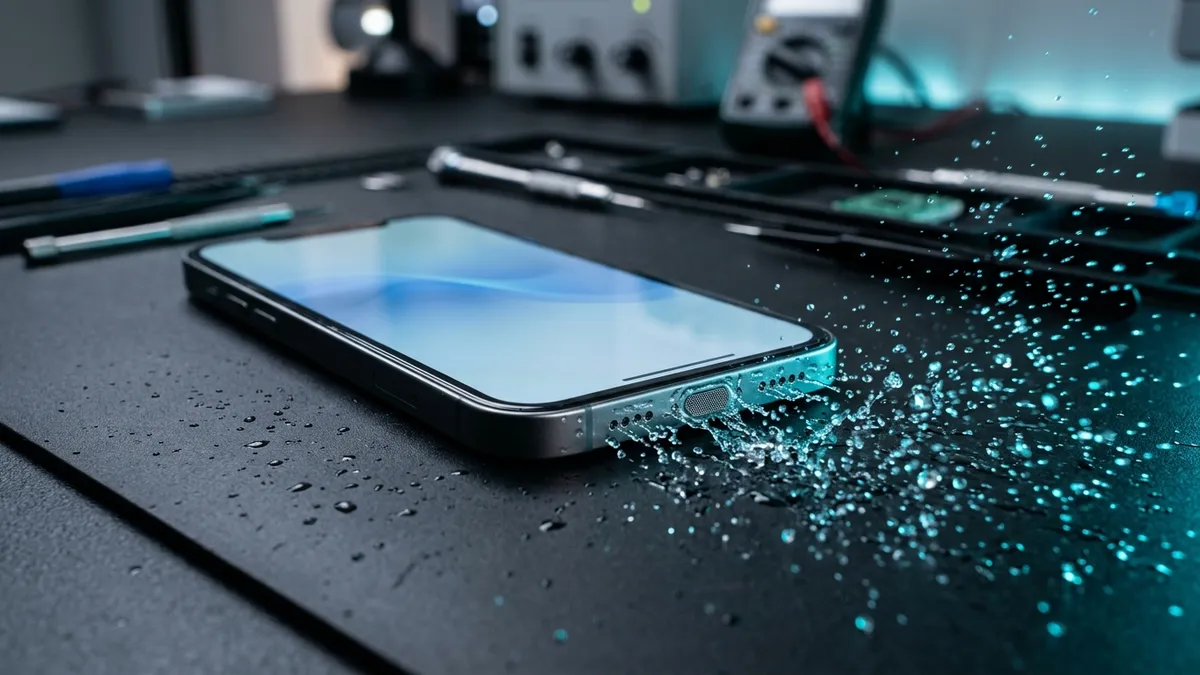
Modern Android smartphones, especially Samsung Galaxy S and A series devices, feature sensitive analog-to-digital sensor lines connected directly to the USB-C interface controller. Inside the 24-pin reversible USB-C connector, the gap between electrical pins is less than 0.5 millimeters. When water, sweat, humidity, or sugary soda enters the port, it bridges the tiny circuit contacts.
The device detects this unexpected electrical conductivity and immediately triggers a persistent system notification accompanied by an audible beep and vibration. Cable charging is instantly blocked by the Android kernel. This warning mirrors the liquid detected warning on Apple devices, serving as your phone's first line of defense against electrical short circuits.
Step-by-Step Bench Procedure to Safely Dry the USB-C Port
If your phone was exposed to liquid recently, assume the sensor is telling the truth. Execute this non-invasive drying procedure:
- Unplug Instantly: Never attempt to force a cable into a port displaying the droplet warning. Forcing charging sends electrical current through moisture, creating instant electrolytic corrosion.
- Gravity Tap: Hold your phone vertically with the USB-C port facing downward toward your palm. Gently tap the upper frame against your hand to shake loose large droplets.
- Cool Moving Airflow: Stand the phone in front of a household desk fan blowing cool air directly into the USB-C port. Leave it for at least 2 to 4 hours. Never use a hot hair dryer, as excessive heat will melt the plastic tongue inside the USB-C port.
The Phone Is Bone Dry, but the Alert Won't Disappear? How to Clear USBSettings Cache
One of the most common complaints on my repair bench is a Samsung phone that has been dry for two days, yet the water droplet icon refuses to disappear. In Android, the system daemon responsible for monitoring the port (USBSettings) frequently gets stuck in a cached software loop even after the physical moisture has evaporated.
To reset the sensor state without factory resetting your phone, follow these steps:
- Navigate to Settings > Apps.
- Tap the small filter icon next to "Your apps" and toggle on Show system apps.
- Scroll down to find USBSettings and tap it.
- Tap Storage > Clear Cache and then Clear Data.
- Restart your phone. In 90% of false-positive cases, this clears the notification and restores normal fast charging.
Android USB-C Moisture Warning Triage Protocols
Here is how to diagnose and resolve persistent moisture alerts based on underlying physical causes:
| Symptom Context | Probable Root Cause | Correct Bench Action | Do NOT Do |
|---|---|---|---|
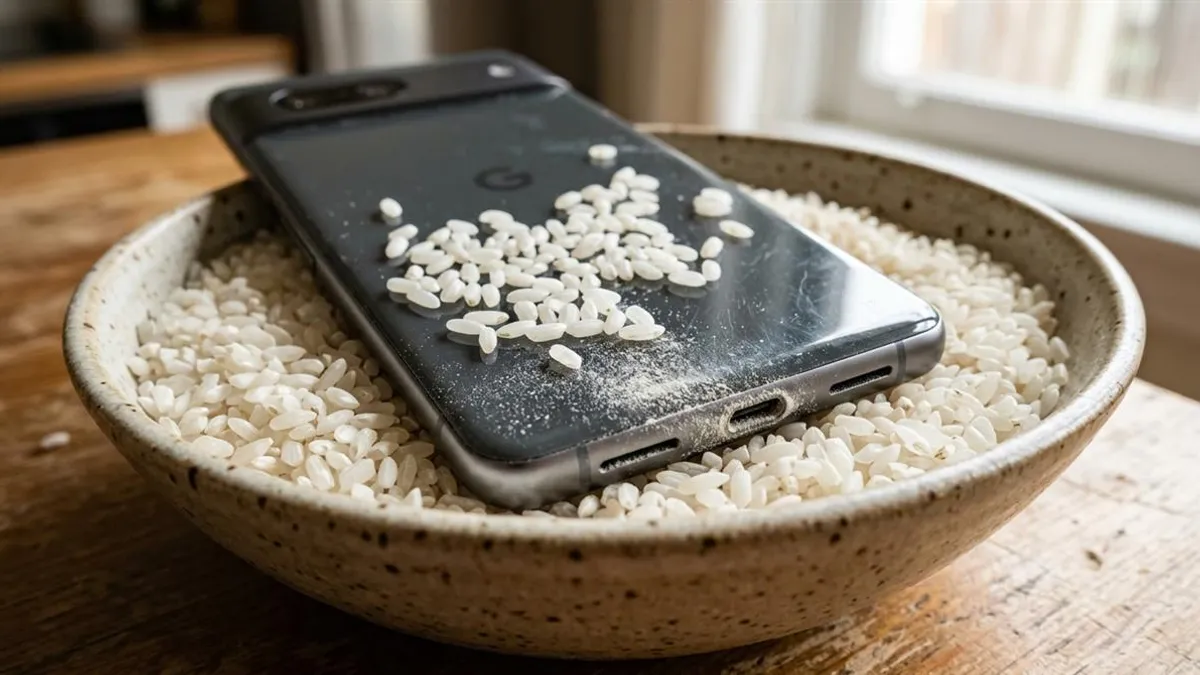
| Recent Pool or Sink Drop | Physical liquid trapped in port pins | Fan airflow drying for 3-4 hours | Do not insert toothpicks or rice |
| Port Dry for 24+ Hours | Android USBSettings cache glitch | Clear USBSettings cache and restart | Do not factory reset device |
| Drop in Salt Water or Gym Sweat | Conductive salt mineral crust | Clean with 99% isopropyl alcohol wipe | Do not charge until rinsed |
| Alert Triggered by Any Cable | Corroded VBUS pin or bent tongue | Bench USB-C daughterboard replacement | Do not force cable at angles |
Emergency Wireless Charging and Speaker Expulsion
If your battery is critically low while the USB port dries, take advantage of Qi wireless charging. Samsung Galaxy S and Note devices support inductive charging, which bypasses the USB-C daughterboard entirely. Place the dry phone on a wireless charging pad to top up safely.
Finally, remember that water that entered the USB port often entered the adjacent bottom speaker grilles. Run our free Water Eject 165Hz sound tool to dislodge droplets before they dry and choke audio. If your phone took a complete submersion, execute our full emergency water damage protocol immediately.
Samsung vs Google Pixel vs Xiaomi USB Moisture Handling
Different Android manufacturers implement USB-C moisture detection through distinct software and hardware layers:
- Samsung Galaxy One UI: Operates the strictest hardware safety threshold. The USBSettings daemon monitors impedance across pins. Even clean humidity in tropical climates can trigger false alerts. Wireless Qi charging works 100% safely as an immediate charging alternative.
- Google Pixel Devices: Display an analog "Liquid or debris in USB port" modal that disables the USB controller completely, including OTG accessories. Pixels typically reset within 2 hours of room fan airflow once resistance returns to normal.
- Xiaomi & OnePlus (Fast Charging): Because proprietary charging protocols (HyperCharge, Warp Charge) push up to 120W at 6A, moisture in the port carries severe fire risk. Xiaomi firmware blocks all high-wattage charging until the port is verified 100% bone dry.
Frequently Asked Hardware Questions
Why does Samsung block charging when moisture is detected?
Samsung Galaxy devices include a dedicated hardware galvanic sensor inside the USB-C assembly. If electrical conductivity is detected between VBUS and ground pins, charging is locked to prevent electrolytic destruction of the port.
How do I clear the persistent moisture alert if my port is completely dry?
On Samsung devices, go to Settings > Apps > Filter: Show System Apps > USBSettings > Storage > Clear Cache and Clear Data. Then restart your phone while plugged into a computer USB port.
Can I wirelessly charge a Samsung phone while the moisture alert is active?
Yes. Wireless Qi charging bypasses the USB-C controller entirely and works safely even when the software warning is showing.
Written by Lucas Silva
Senior Audio Acoustics Engineer & Smartphone Hardware Specialist
Lucas Silva specializes in micro-soldering diagnostics, acoustic resonance calibration, and liquid ingress recovery across iOS and Android hardware architectures with 7+ years of bench laboratory experience.
Connect on Official LinkedIn