Liquid Detected in Lightning Connector: How to Dry iPhone Safely
 By Lucas Silva
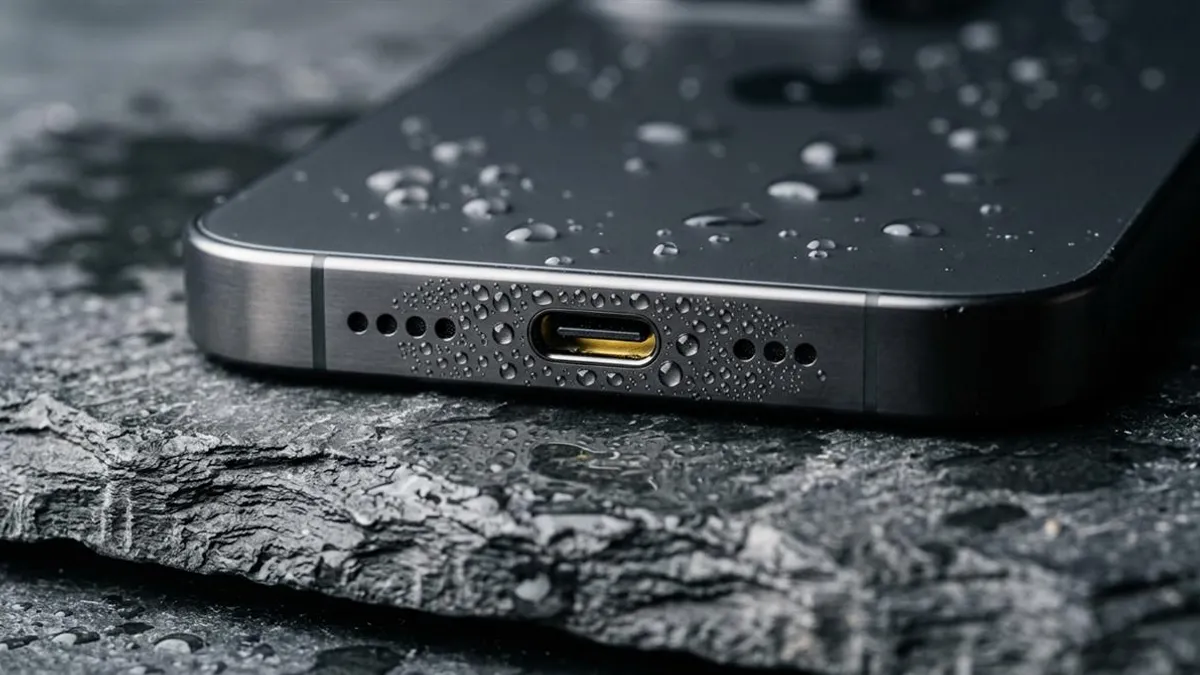
⚡ Bench Diagnostic Summary:
When iOS flashes the yellow warning icon saying "Liquid Detected in Lightning Connector" or "Charging Not Available," your iPhone's hardware sensors have detected electrical conductivity between charging pins. Pressing Emergency Override can permanently fry your phone's power IC; follow our safe bench drying protocol instead.
Why the Liquid Detected Warning Appears on iPhone
Starting in iOS 10 and refined through iOS 17 and iOS 18, Apple introduced active hardware monitoring across the charging port pins. Inside both Lightning (8 pins) and USB-C (24 pins) connectors, the operating system continuously runs minute micro-amperage continuity checks between voltage pins and grounding pins. If liquid, salt residue, or humid sweat bridges these pins, the phone senses electrical conductivity where there should be infinite resistance.
To protect the logic board, iOS immediately cuts off charging capability and triggers a full-screen warning modal. This is a critical protective safeguard: if 5V to 20V charging power were allowed to flow across wet pins, a process called electrolysis would erode the gold-plated pins into corroded copper oxide within seconds, permanently destroying the charging assembly.
The Emergency Override Button: Why You Must Almost Never Tap It
On the liquid warning screen, Apple displays a small button labeled "Emergency Override." Many users, desperate for battery life before an important meeting, tap this button to force the phone to charge. As a micro-soldering technician who replaces burned charging controllers on iPhone logic boards, I cannot overstate the danger of this button.
When you tap Emergency Override, you disable the software safety interlock. If even a microscopic drop of moisture remains bridging Pin 4 (VBUS) and Pin 1 (GND), the high electrical current causes intense localized heating and rapid galvanic ablation. The gold plating vaporizes, the plastic spacer melts, and electrical spikes blow out the charging IC (historically known as Tristar or Hydra on Lightning models). Only use Emergency Override in life-or-death scenarios where calling emergency services is your sole priority.
The MagSafe Workaround: How to Charge Safely Right Now
If your iPhone battery is at 2% and you desperately need your device powered, you do not need to risk burning your charging port with a cable. If you own an iPhone 12, 13, 14, 15, or 16, your device features an internal Qi2 / MagSafe magnetic inductive charging coil situated on the rear glass panel.
MagSafe wireless charging operates through high-frequency electromagnetic induction, completely independent of the physical bottom ports. Ensure the glass back of your iPhone is dry, place it onto a MagSafe puck or Qi wireless charging pad, and your phone will charge normally without sending a single milliamp across the wet bottom pins. This bench trick has saved countless client phones from unnecessary repair bills.
Port Drying Techniques Comparison
Here is how common methods compare for resolving liquid detection alerts safely:
| Technique | Pin Safety | Drying Time | Bench Verdict |
|---|---|---|---|
| Gravity Tap + Room Fan Airflow | 100% Safe (No physical contact) | 2 to 4 hours | Apple Certified Method |
| MagSafe Inductive Charging | Bypasses port entirely | Immediate power delivery | Best Emergency Solution |
| Paper Towel / Cotton Swab Twist | Bends pins; leaves fiber lint | Slow wicking | Forbidden (Damages pins) |
| Hair Dryer / Heat Gun | Melts port plastics & adhesives | Rapid vaporization | High Risk of Component Meltdown |
Step-by-Step Bench Protocol to Clear the Alert
To clear the moisture alert safely and return your iPhone to normal wired fast charging, follow these bench instructions:
- Disconnect Immediately: Unplug the charging cable from both the phone and wall brick.
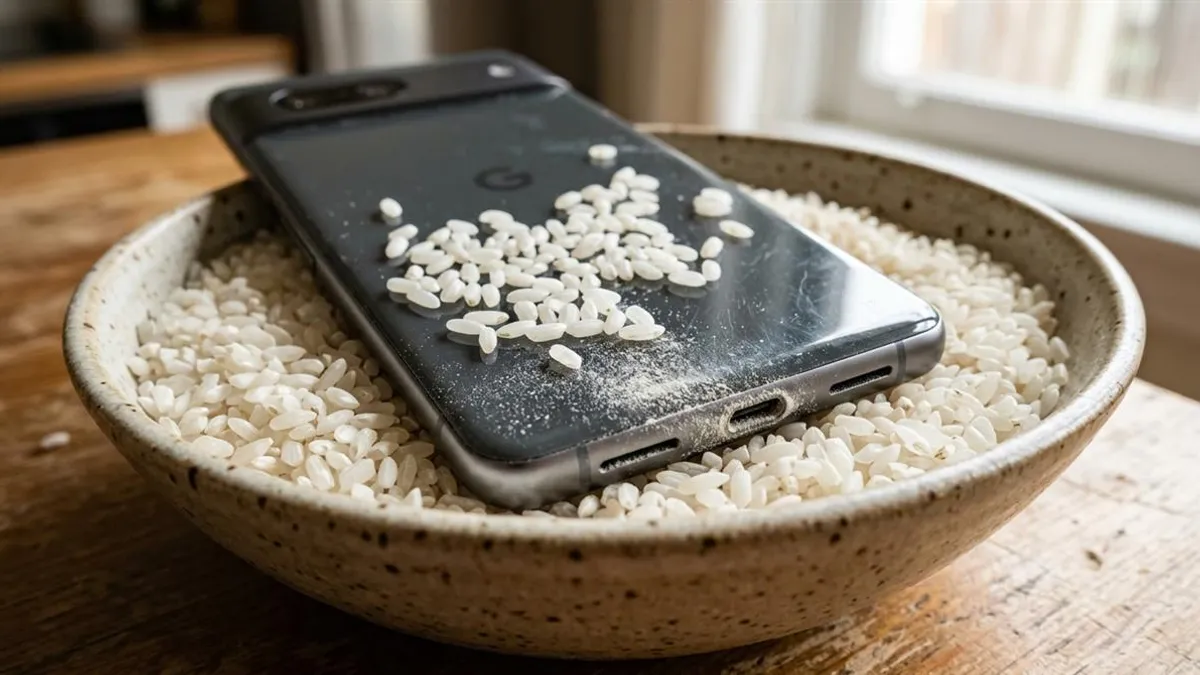
- Gravity Tap: Hold the iPhone vertically with the port facing down and tap it gently against your hand. Never insert rolled paper towels or raw rice, as uncooked rice creates starch paste inside the port that makes the alert permanent.
- Fan Evaporation: Stand the iPhone upright in front of a fan blowing cool room-temperature air directly into the port for at least 3 hours.
- Clear Acoustic Grilles: While the port dries, run our free 165Hz Water Eject tool to expel water trapped in adjacent bottom speaker holes. For broader hardware recovery, review our guide on how to get water out of an iPhone.
Connector Pin Architecture: Lightning vs USB-C Across Apple Hardware
Understanding the micro-pin physical layout explains why liquid alerts trigger so readily on Apple hardware:
- Lightning Connector (iPhone 5 to 14): Has 8 gold pins. Pin 4 carries high-amperage VBUS charging current; water bridging to ground triggers sensors instantly.
- USB-C Connector (iPhone 15 & 16): Has 24 micro-pins with <0.3mm spacing. Moisture bridging CC lines disrupts Power Delivery and risks voltage spikes.
- Cleaning Protocol: Never scrape pins with metal SIM tools. If mineral crust triggers false alerts after drying, clean gently with 99% isopropyl alcohol and an ESD brush.
Frequently Asked Hardware Questions
What happens if I tap Emergency Override on my iPhone?
Tapping Emergency Override forces electrical current across damp connector pins. This triggers instant electrolytic oxidation, causing pin erosion and potentially frying the Tristar/Hydra charging IC.
Can I charge my iPhone with MagSafe while the liquid alert is active?
Yes! MagSafe and Qi wireless charging transmit power electromagnetically through the rear glass panel, bypassing the charging port pins entirely.
Why does my iPhone say liquid is detected when the port is completely dry?
Persistent false alerts are caused by conductive debris, pocket lint soaked in humidity, or mineral salt crust bridging the micro-pins. Clean the port gently using an ESD-safe brush and 99% isopropyl alcohol.
Written by Lucas Silva
Senior Audio Acoustics Engineer & Smartphone Hardware Specialist
Lucas Silva specializes in micro-soldering diagnostics, acoustic resonance calibration, and liquid ingress recovery across iOS and Android hardware architectures with 7+ years of bench laboratory experience.
Connect on Official LinkedIn